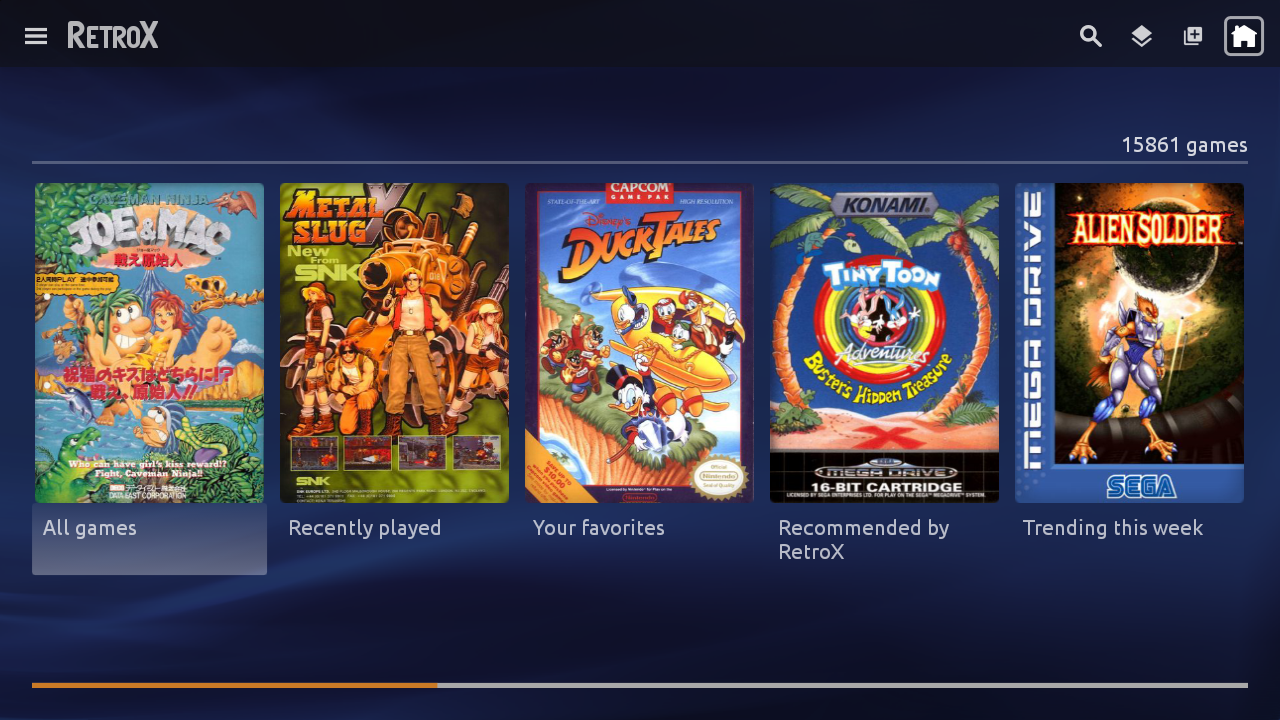
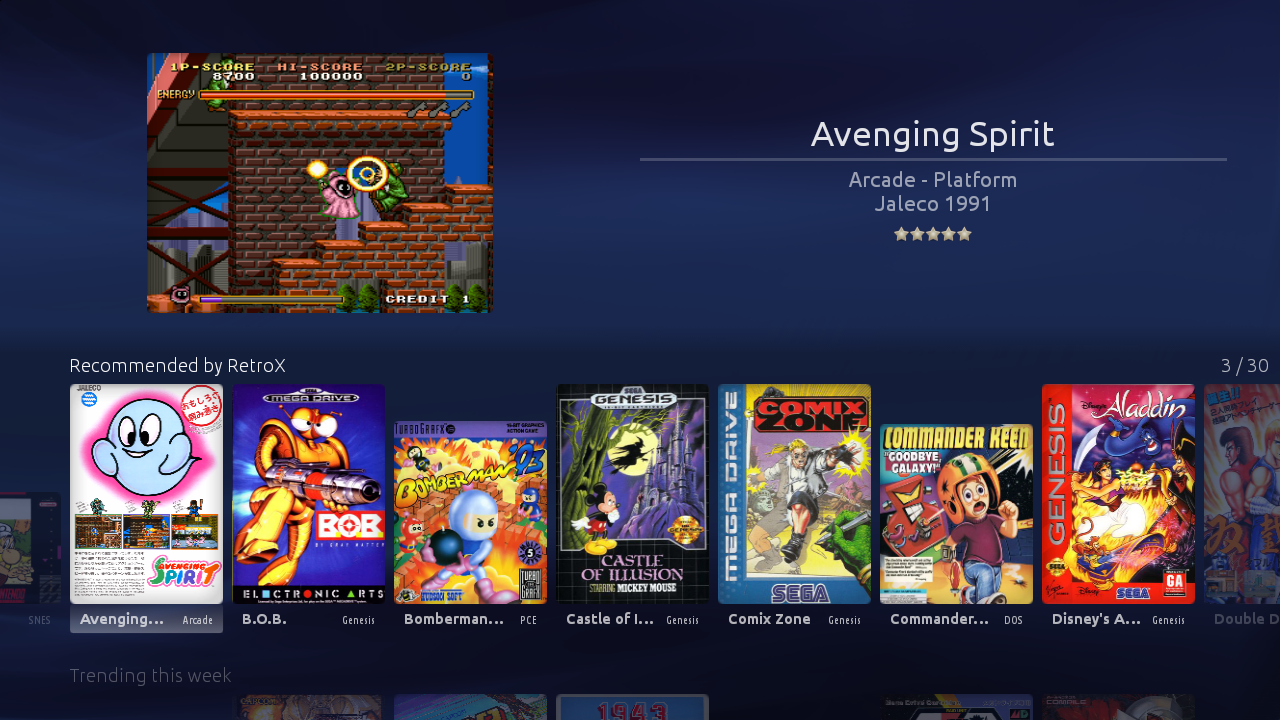
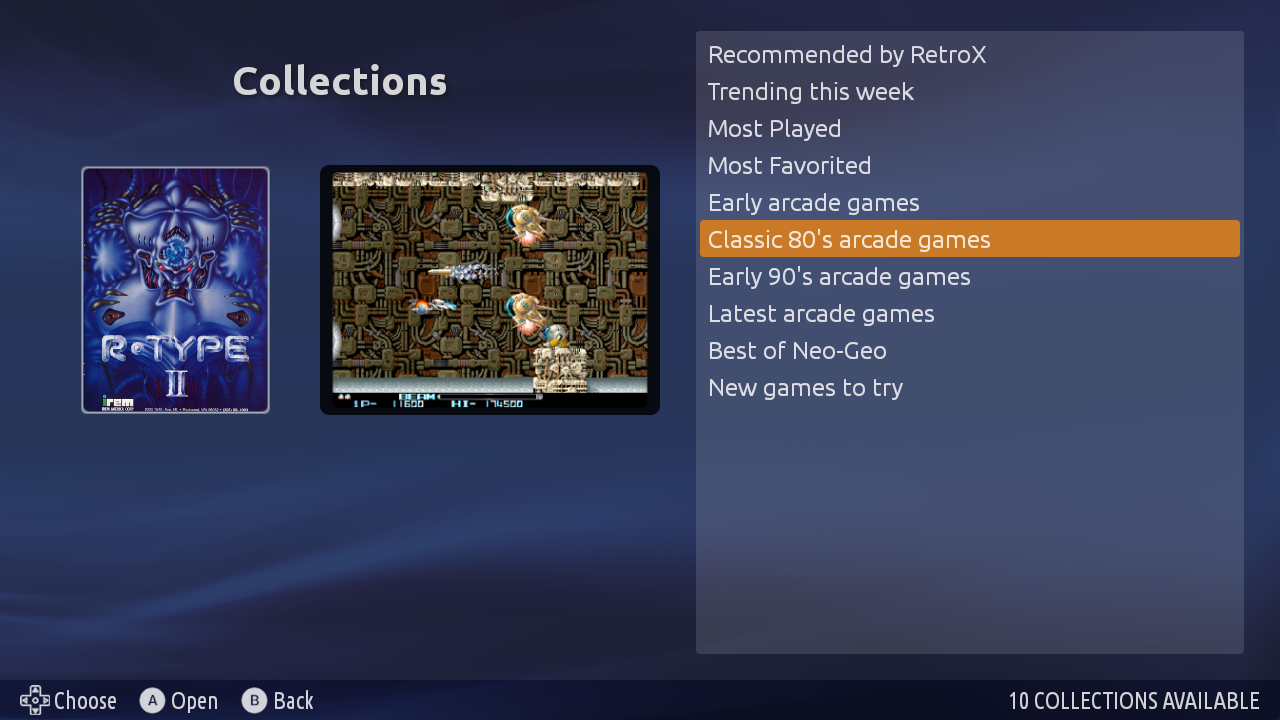
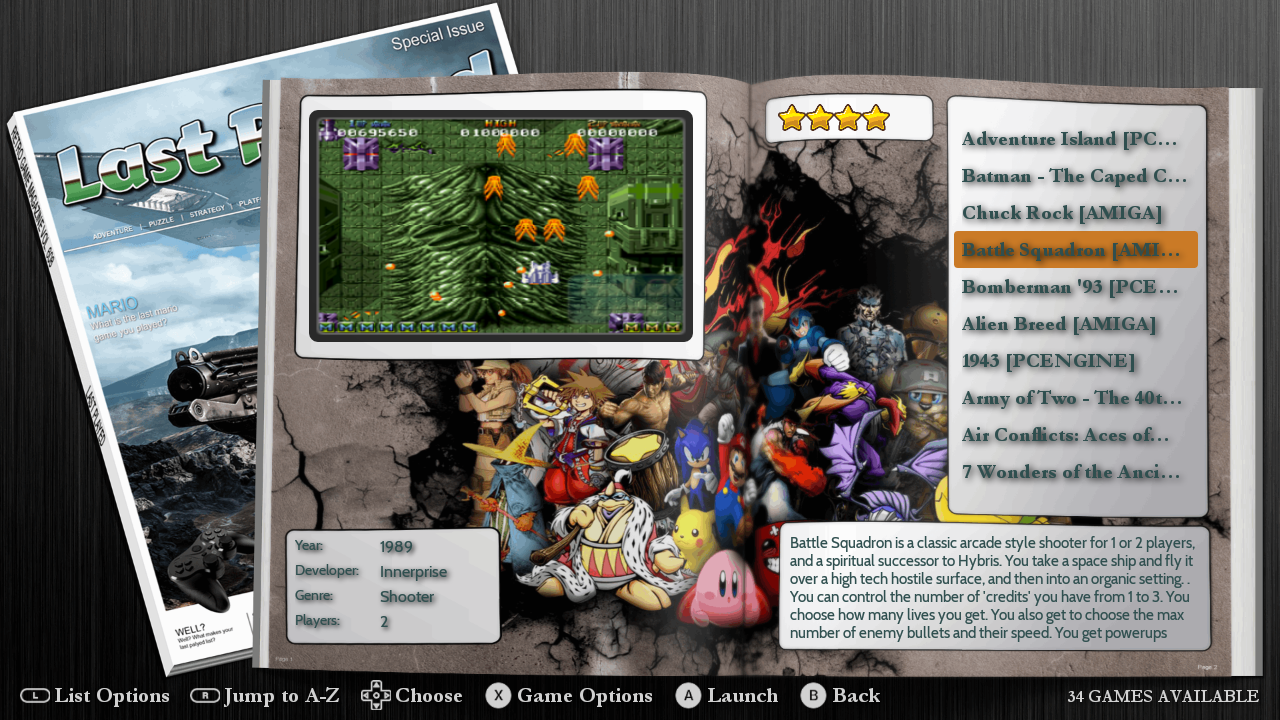
RetroX 3 is out now!! Yes, this version is a milestone that deserves its own version number! Apart from having the new Collections feature, all the UI for Mobile and standard TV mode has been improved… a lot.
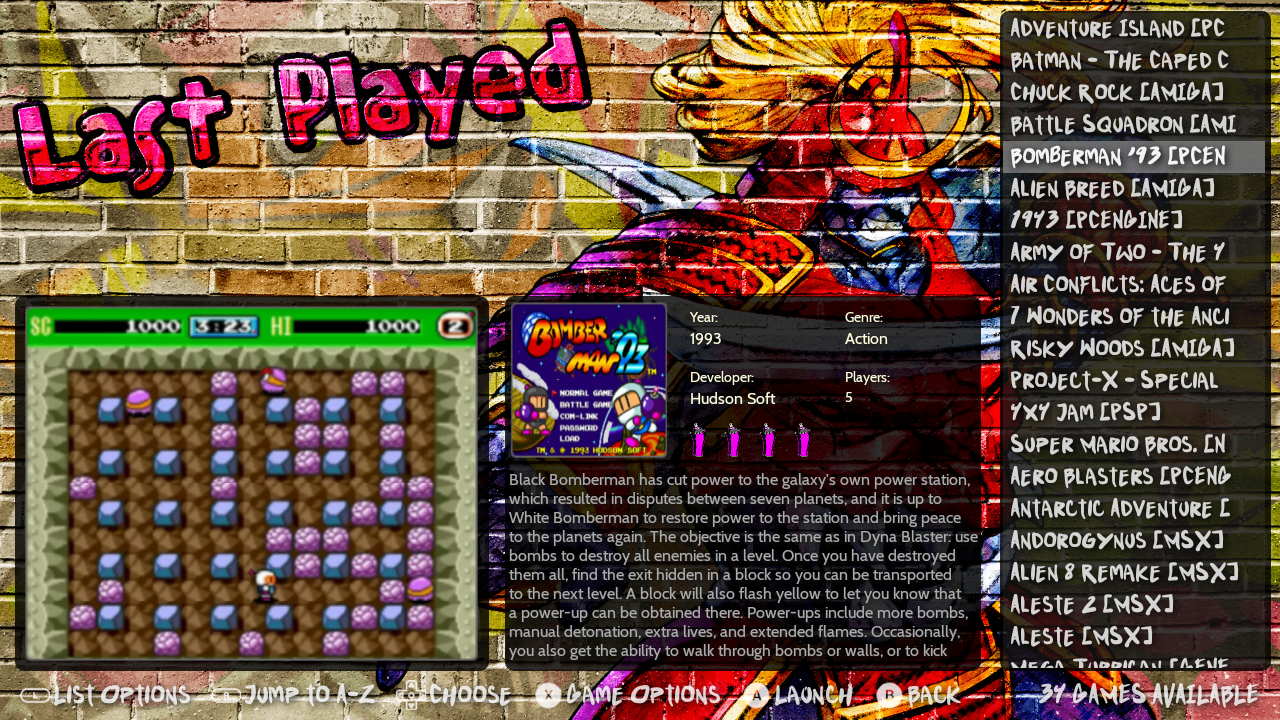
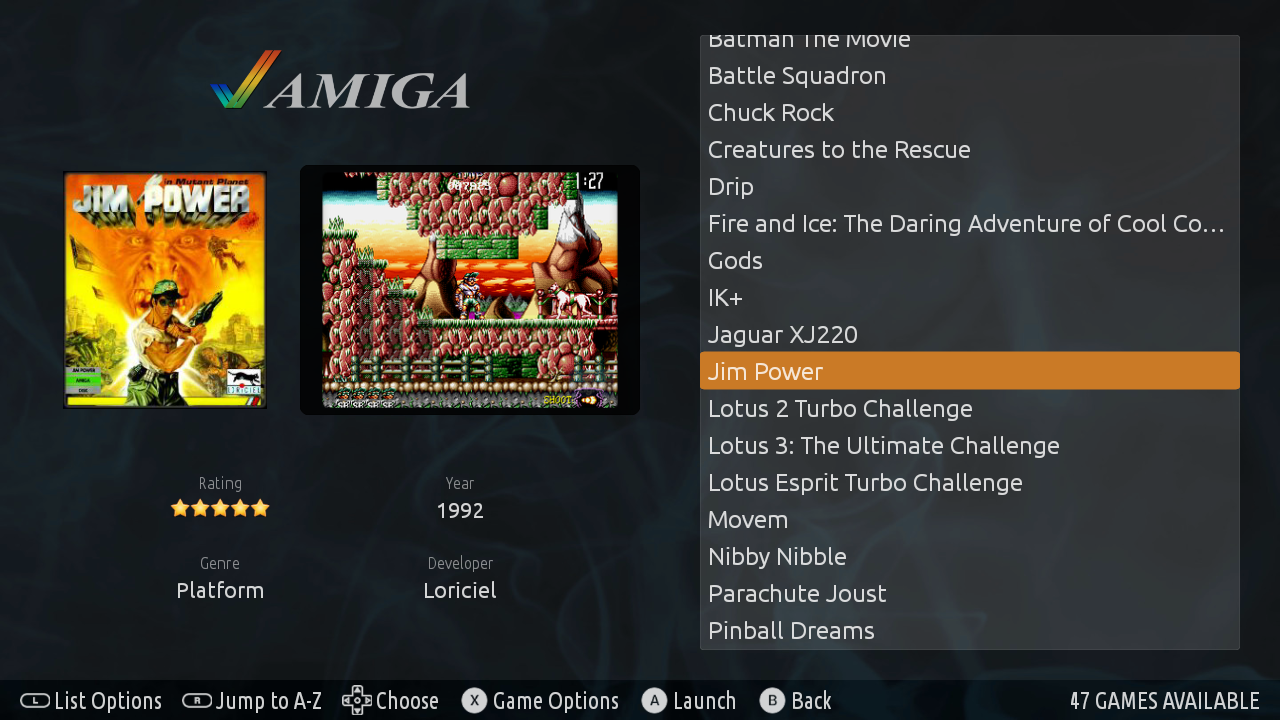
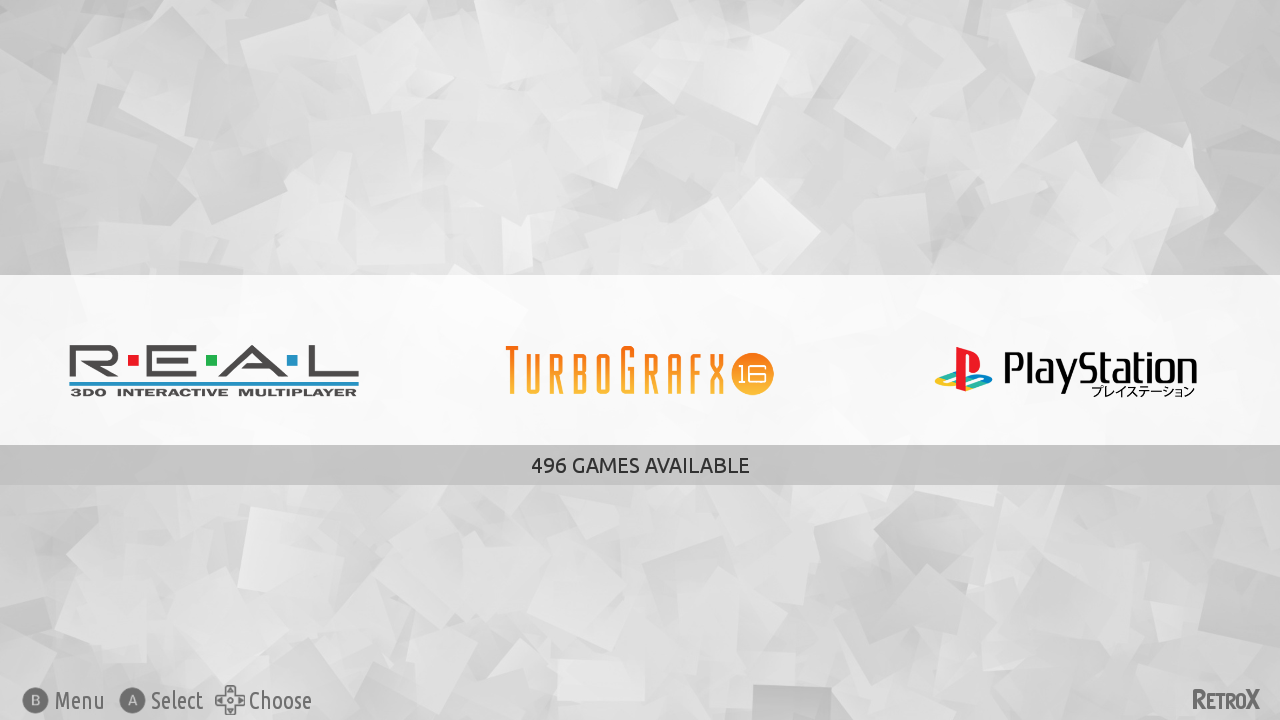
This version also includes three new themes, one is the built in RetroX theme that matches the mobile and standard TV mode, and the other two are new amazing themes ported by Nigel Rapley, who not only has been contributing with more themes, he also added the collections support for all existing themes. A big THANKS to Nigel!
There are some other “minor” changes like:
Support for multidisc 3DO games
Improved performance on slow devices when loading big collections (big, not huge 😉 )
Better mobile layout for small screens with 4:3 aspect ratio (Retroid Pocket 2)
Automatically silence video previews if background music is enabled
Faster / improved downloading of artwork from the RetroX server
Multiple fixes for multi disk games
Fixed a bug that sometimes prevented moving through covers in TV mode
… and more
And here is what comes in the next days because it is already in progress:
More collections
Updated data for trending/popular/recommended games
Some themes will be compatible with smalls screens (Retroid Pocket 2)
New default covers for games without artwork (partially done now)
A new option to show only games with artwork, no more manual cleaning needed
Just for stats: This version is 233 commits with 893 files changed. 14,679 additions and 3,987 deletions
Note: Some themes may require that you get the artwork from EmuMovies, you can do get it using a free EmuMovies account under Manage Games -> EmuMovies sync
A new feature has been added to RetroX to allow using different user interfaces for the same application, this is known as Themes.
The main focus of RetroX has always been to make playing retro games the as easy as possible, just select one game and RetroX will do the best it can to run that game. How the app looked was important but second in priority, we just wanted to provide a clean look inspired of what apps like Plex and Netflix were doing at that time (2015). As time passed other emulation frontends began to do a great job on their user interfaces and given that the ease to use was well established in RetroX it was time to give some love to the way RetroX looks.
Themes is nothing new, and in fact we think that Emulation Station (ES/RetroPie) has a great themeing system, so instead of creating something completely new with all the risks involved, we made a theme engine to easily port ES themes or just create new ones from scratch.
For now, themes is not enabled by default, it is designed for TV boxes only and marked as Experimental. We’ve been testing it for a long time with many beta users but there are always some surprises when new features are exposed to all the RetroX users.
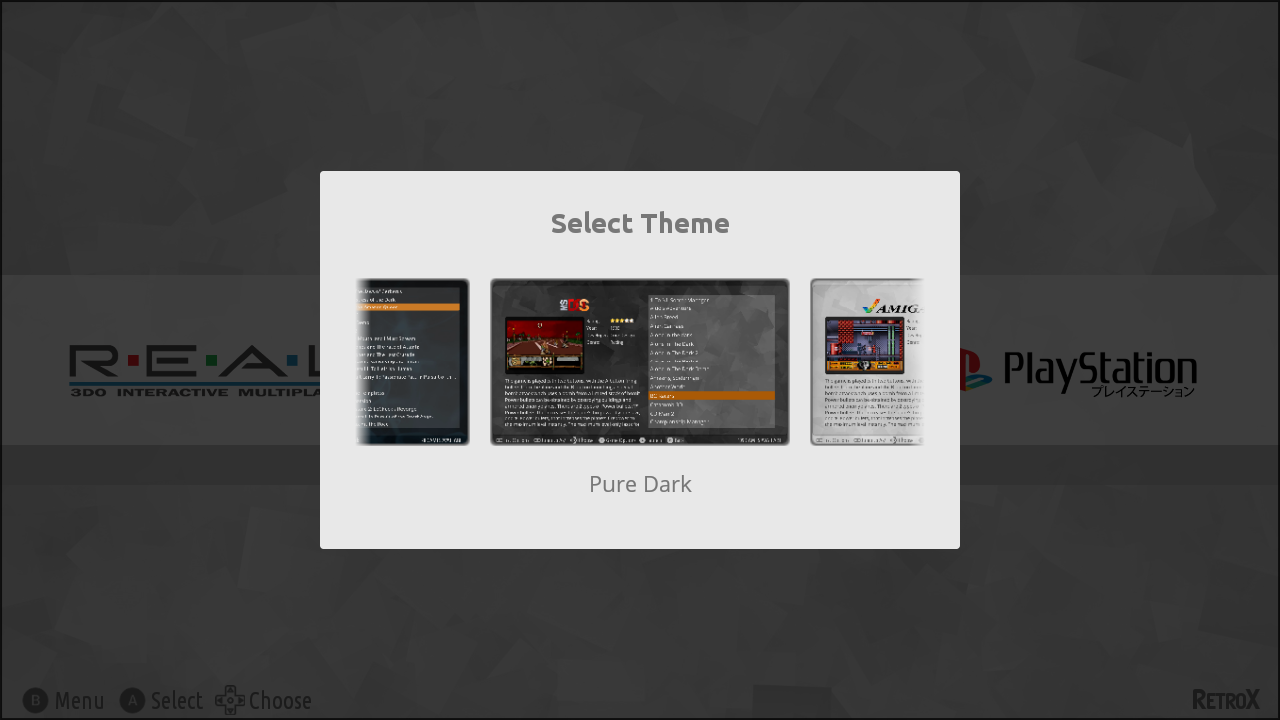
To enable Themes go to Settings -> Display -> User Interface -> TV + Themes Theme selector
Built in themes
RetroX comes with three built in themes, one inspired in the classical clean look (RetroX Classic) and two simple themes with a light and dark mood (Plain Light, Plain Dark), but this is just the beginning, we will be adding more themes in future releases.
While in development we ported the popular Comic Book to RetroX just to test the theme engine and it looks great, that is the theme that most people have seen in our video previews of themes, but the authors of Comic Book forbid commercial distribution so we cannot include it built in RetroX, yet users can add it to their RetroX setups manually (more on that below).
RetroX Classic Theme
Background music
Together with themes we added a feature to have background music. In the past, several videos used background music when showing RetroX, and that music gave some kind of life to RetroX, now it’s a built in feature. Of course there are options to select songs or simply shut off the music, so users are always in control.
How to add themes and music
Adding themes and music is as easy as copying files to your device, you only need to know where your “retrox.data” folder is. This is commonly located under /sdcard/ but that varies from device to device.
Themes: They are distributed as .zip files and must be copied to the retrox.data/themes folder. You can try with ComicBook or NES Mini unofficial ports.
Music: They go to the retrox.data/music folder. Currently we only support modtracker formats like .mod, .s3m and .it. There are tons of songs to choose from in modarchive.org.
As it happened with ComicBook, we used several songs by Lizardking in our demos of RetroX, but we were unable to contact him to use his music built in RetroX. If you liked those demos you can find the songs Compulsion to Obey and Desert Down here.
The future
This is just the beginning. The plans for Themes is still a long way to go, this release was done because we didn’t want you to wait any longer.
We will release a themes tutorial so other people can create themes and we plan to put the best themes available for download from RetroX, yes: online themes.
We also want to add more theme styles that will allow different kinds of navigation or game display, video snaps, automatic collections (NeoGeo, Capcom, etc).
Finally Sega Dreamcast has arrived to RetroX!! This is one of the most requested system and we put it at the top of the list in our 2017 roadmap, so a lot of people were waiting for it.
I will divide this post on two aspects of this release: Users and Developers.
Users
Consider this an initial release. I left some parts to later updates because they required more days and I prefer to release as soon as I can.
Settings – Performance options (frame skipping, specific fixes/optimizations)
BIOS boot
Get rid of the required clock set up
Most of these are options available in the original emulator, but not exposed in this port.
Note that this emulator doesn’t support save states, only saving progress through the original Dreamcast VMU “memory cards”. As you may expect, those saves are stored with your RetroX account in our cloud.
For developers
Honestly I was a bit reluctant to work on this system, because it is always a challenge to port a complete new emulator to RetroX. There is always a little detail that require several iterations and testing, all emulator are written different! Although this was not the exception, I didn’t think it would take the few time that it took to make the port (scattered hours among three days). Sometimes this kind of work can take at least one week.
The code base which is the Reicast emulator is very clean and fortunately most changes could be done only in the Java part. Also, the fact that this emulator doesn’t support saving states reduced the complexity of the port a lot.
This port was made in this new era of RetroX where the code is committed in public, so anyone interested can follow the track of how the changes were made. If anybody is interested in porting a new emulator, this will be an excellent example case.
The problem that took most of the time was something that didn’t happen before. Once the options menu was displayed, the GL surface went blank. I had to do several tests to know exactly what was the problem, and my conclusion is that for some reason, part of the GL surface was altered in a way that it was not visible anymore. Finally I came to a workaround, which is to add the view and remove it after use (not hide/gone it), this forced to GL surface to reset completely. The code ended to be more dirty but it worked.
In comparison, the Mupen64 emulator also used a GL surface but it doesn’t have this problem. Looking at the root cause would require a lot of iterations, so I just went with the workaround.
One of our targets has been make things as simple as possible, this included making the gamepad configurations less painful providing a centralized mechanism: Set up your controller once and for all. But sometimes underlying details makes it hard to apply one rule for all, and that’s the case of the N64 controller (read The law of leaky abstractions for background theory).
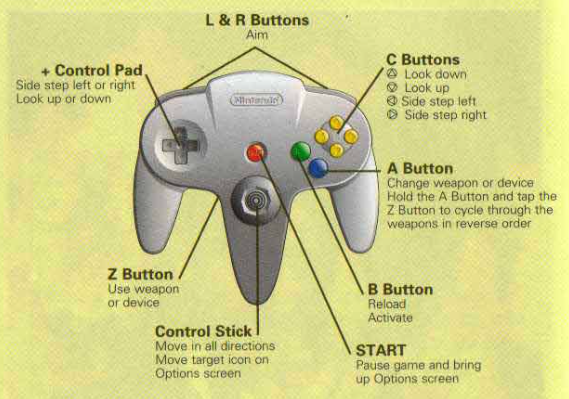
The RetroX fronted as well as emulators like RetroArch uses the SNES style controller as a basis for all systems, and a special derivate which is the PlayStation one, which simply add more buttons. Most systems have just subsets of these two controllers, except for N64 where the controller is a completely different beast, a curious design to say the least.
To play N64 without issues you need an N64 controller, everything else will be a hit and miss. Most emulators will request the users to map each button of their controllers but we wanted to stay away from that providing a standard configuration for SNES style controllers. As me (the developer) had almost zero experience with N64 beyond the intro of Super Mario 64, this simplification failed with other games, being Golden Eye 007 the icon if this problem.
Until now.
I changed the way that SNES style controllers are mapped adding the use of the right analog stick as “C dpad” buttons – the yellow ones in the N64 controller. Using this configuration, the directional nature of the C buttons is kept and they remain as natural as possible for the intentions of the game designer.
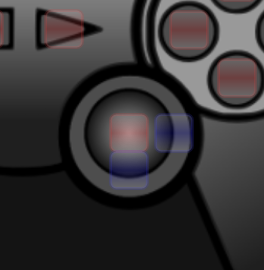
Given that the signals that right analog controls emit are not standard among all controllers, I added two new configuration points for the right analog control, just select them and follow the instructions so RetroX can learn about the codes used with your gamepad. You will see those new points in blue.
New analog right setup
But this was not enough.
Testing Golden Eye and having some experience with modern day first person shooters, it felt more natural to invert the analog controllers, so you can strafe with the left analog and move with the right analog. Now there is a new option to invert the analog controllers from the in-game options, or make it the default for your game in the game details screen -> “configure this game” option.
GoldenEye original controls
And this was not enough again.
The controls still seemed awkward by design, because the strafe left/right is combined with the look up / down while modern FPS games combine strafe with move forward / backwards. So finally I added a new option called “Optimized for Golden Eye” where not only the analog controllers work as intended, but also the trigger to shut the guns has been switched to the right (R2) and the aim is at the left (L2).
I played Golden Eye some minutes with this new configuration and it is a world of difference.
These new settings made the old Digital / Analog modes on N64 become obsolete, so now with the SELECT button you can easily switch between Original, Inverted and Golden Eye modes.
Users of 8bitdo N64 controllers
I also added an experimental setting for users of the 8bitdo N64 controllers. As they are physically N64 controllers, I added an option to automatically map that controller when used in N64 games. As I don’t have that controller (yet), this setting is disabled by default and users must enable it in the Gamepad Options.
I expect to receive good or bad feedback about this, considering it that it was done in the blind!
Also I would like to give big thanks to the members of the RetroManiaUK Facebook group for giving me these ideas to improve the way RetroX works with N64 controllers.
Also in this release…
There are also some fixes included in this release:
Not available games now are removed / cleaned as expected
Games based on CUE files now are downloaded correctly from networked storages (NAS / Cloud). These are used by CD based systems like Playstation, PC Engine CD and Sega CD.
Final Burn Alpha addon now is compatible with games requiring samples. (Provided samples may be not right with some games as I found with Donkey Kong, so if you have a games with samples but no sound please send me a message)
Save states related options have been removed from MAME 2001, 2010 and 2014. Only 2003 supports saving states
Size measure of installed games coming from compressed files has been fixed.
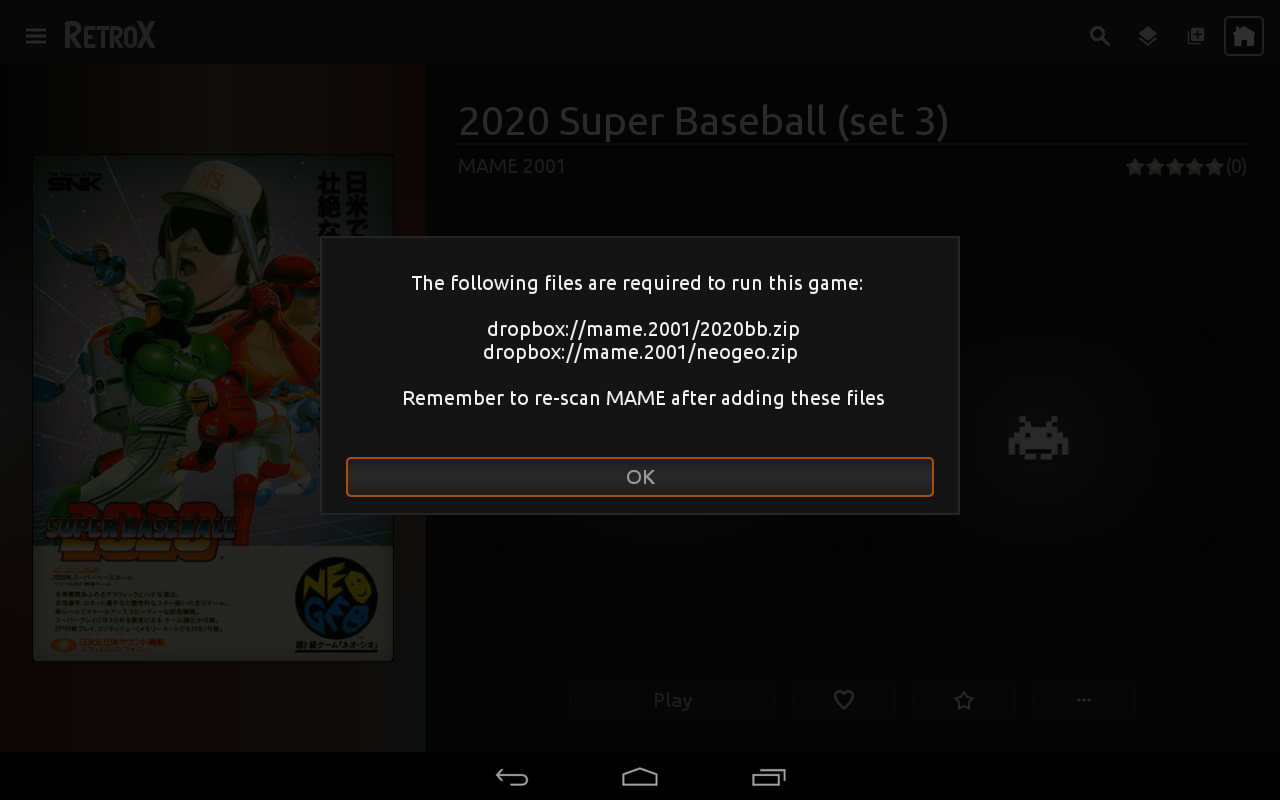
Many users – including me – suffered when trying to play MAME or FBA games without using a full ROM set. This was because these games can be splitted into several files: One main .zip file plus several small files containing just the differences for region specific versions, bootlegs, etc. Without the info at hand, it’s very easy to miss some files and in that case the emulator just crashed.
Until now.
With this release the user will be able to know which files are missing and where they should be made available.
This feature was NOT planned, I was fixing a different problem and that required this kind of knowledge to be integrated in the app. If the ROM file was stored in a NAS or cloud, only that file was retrieved and not all the needed ones, so many many games just crashed. If you had MAME/FBA games in a network storage and the emulator crashed, this was the reason.
And… that fix wasn’t planned as well! I was fixing a bug that may have been crashing some emulators: If a large file download or transfer failed or was cancelled by the user, the file was kept and RX would never try to download it again, crashing the emulator when used.
And… that fix was because I wanted fix the problem that not all network operations were showing the progress info, neither can be cancelled…
RetroBoxTV “God save the states” release is finally out!
This is the first update that brings some features ONLY for Activated Accounts (AA). This is because the new features will increase the load in our servers, and some features don’t make sense to free users anyway because they see only a few games.
The main feature (AA only) is of course, cloud based save states and memory cards. This basically means that you can play a game in one device and continue playing in another device. The save states and memory cards are now tied to your user account, it doesn’t matter what device you are using.
At the beginning, if you already have more than one device, the first one will upload all its save states and memory cards, the following devices will only upload the files that are not in the cloud to prevent overwriting, and it will only download the files that are not in the current device, again to prevent overwriting. Once you get all your devices running, the new saves will turn into the official ones for your account.
New Save States user interface
With this new feature, the current user interface for save/load states and slot selection was not cutting it. There was no way to distinguish between current and previous save states so I made a complete change on how the emulators handle that part. As you can see in the screenshots attached, now all save states are shown with a screenshot of the moment they were created, that will help you to recognize easily what slot has what state. The only emulator where I couldn’t get screenshots was the N64 emulator, for now it will only show the N64 logo, but I hope to revisit that code in the future.
The cloud based save states will be free to all AA for now, but if this feature turns to be an storage issue in the future, we may have to bring a way to fund it, but don’t worry, we thought that the worst case would be a small yearly subscription fee.
Another new feature is the Playstation multidisc support. Just put all the files in one folder and RetroBoxTV will offer a “change disk” option.
The “last played” game list was stored in the device, now it has been moved to the user account. That will help multi-device users find their latest played games anywhere.
For AA accounts using TV devices I added some new lists to the front page, this lists will help you find games that other people consider that are worth playing. The new lists are: Trending this week, Most popular and Most favorited. We show each game in one list only, so you will get up to 75 recomemndations from those lists.
And the last one. To stop ES Explorer causing issues with RetroBoxTV, there will be a warning message if RetroBoxTV detects that you left ES Explorer running.